The Creative Studio is NGAZE’s AI-powered design and content workspace. It helps you create marketing visuals and creative assets for your restaurant quickly—without needing a designer or external tools.
This feature answers:
“How do I create on-brand visuals and creative content for marketing?”
Where to Find Creative Studio #
From the left navigation menu, click:
Menu → Studio
What Creative Studio Is Used For #
Creative Studio helps you:
- Generate marketing visuals using AI
- Create content for social media, campaigns, and promotions
- Explore creative ideas using presets
- Turn photos and concepts into polished visuals
It’s designed for speed, inspiration, and consistency.
Creative Studio Layout Explained #
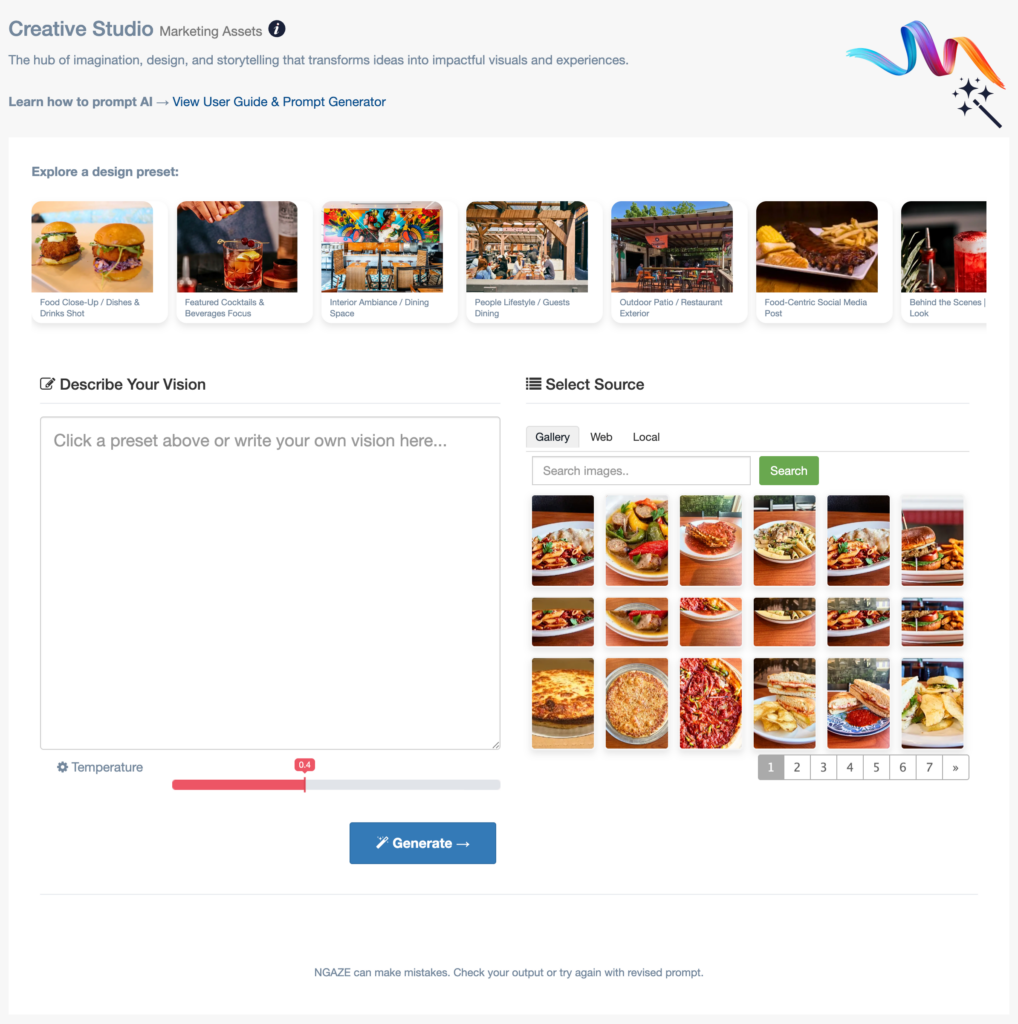
🎨 Design Presets (Top Section)
At the top, you’ll see design presets you can start with, such as:
- Food Close-Up / Dishes & Drinks
- Featured Cocktails & Beverages
- Interior Ambiance / Dining Space
- People Lifestyle / Guests Dining
- Outdoor Patio / Restaurant Exterior
- Food-Centric Social Media Post
- Behind-the-Scenes Look
Presets help guide the AI and reduce guesswork.
👉 You can click a preset or skip presets and write your own vision.
✍️ Describe Your Vision
This is where you describe what you want to create.
You can:
- Use a preset (auto-fills guidance)
- Write your own creative prompt
- Combine both for better results
Example:
“Warm, cozy Italian restaurant ambiance with fresh pasta and soft lighting, suitable for Instagram.”
Clear descriptions produce better outputs.
🖼 Select Source (Gallery, Web, Local)
You can choose where reference images come from:
- Gallery – Use existing images available in NGAZE
- Web – Search publicly available images
- Local – Use your own uploaded images
Reference images help the AI match:
- Food style
- Plating
- Atmosphere
- Brand vibe
🔥 Temperature Control
The Temperature slider controls creativity:
- Lower temperature → more realistic, consistent outputs
- Higher temperature → more creative, artistic variations
If you want predictable marketing visuals, keep temperature moderate.
⚙️ Generate
Click Generate to create your visual output.
The AI will:
- Interpret your prompt
- Use selected presets and references
- Generate creative visuals accordingly
You can regenerate or refine your prompt as needed.
Important Note About AI Output
You’ll see this reminder at the bottom:
“NGAZE can make mistakes. Check your output or try again with revised prompt.”
This is expected with AI tools. Reviewing and refining prompts improves results.
How Creative Studio Is Commonly Used #
Creative Studio is ideal for:
- Social media posts
- Campaign visuals
- Promotional graphics
- Website imagery concepts
- Seasonal marketing assets
It helps you move faster without waiting on external creative resources.
Best Practices for Using Creative Studio #
- Start with presets if you’re unsure
- Be specific in your vision description
- Use real food or restaurant images as references
- Adjust temperature if results feel off
- Generate multiple versions and choose the best
What Creative Studio Does NOT Do #
To set expectations:
- It does not auto-publish content
- It does not replace brand review or approval
- It does not guarantee perfect results every time
It’s a creative assistant, not a replacement for judgment.
How Creative Studio Connects to Other NGAZE Features #
Creative Studio supports:
- Social Media Tools – for post visuals
- Campaigns – for creative assets
- Playbook – for planned marketing
- Assets – for storing generated visuals
Need Help? #
If you need assistance:
- Use Help inside NGAZE
- Email support@support@thedigitalrestaurant.com
- Schedule a call with your account manager